Marker
Markers/Ruler/ Directions
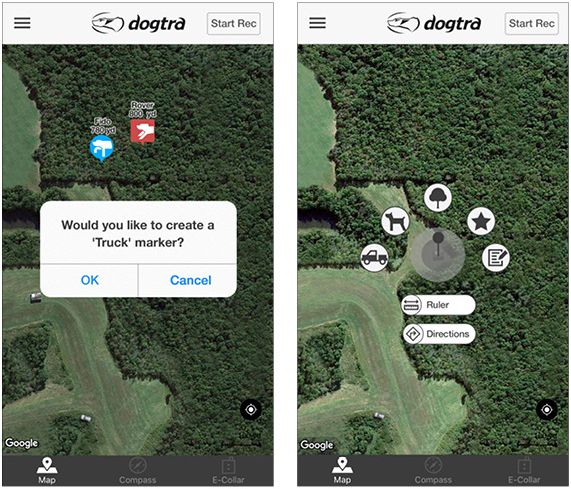
Markers
Add a ‘Truck’ marker to mark your car location when the app launches to draw a line between the ‘Truck’ and ‘ME’ markers. You may also create a ‘Truck” marker at the current location you are at when using the app.
Long press anywhere on the map to open up the Marker Ruler Menu. The markers can be used to mark important locations.
The marker will be stored in the history file. When starting a new Tracking History, the previous marker will still be on the map. If you tap on the marker, you will see the marker delete button and a line from the current location to the marker.
Text can be saved along with the markers. You can create 20 markers of each type (except Ruler and Direction).
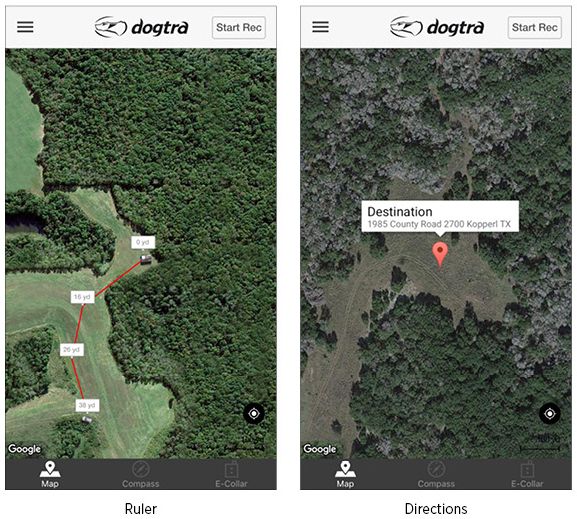
Ruler
The distance ruler can measure the distance between multiple points. When finished, click ” x ” to exit out of the distance ruler.
Directions
The Directions function is used to find your way back to your desired destination, which can only be marked with one marker. You must have the Google Maps application installed in order to see the directions to your destination. You will also need to use either cellular data or Wi-Fi to use this function.
Did it help ?
Didn't find what you were looking for? Try looking on the FAQ